Use Multi Window and multitasking features on your Galaxy Z Fold8 Ultra

Whether you're comparing information, replying to messages while browsing the web, or keeping a floating app within easy reach, your Galaxy Z Fold8 Ultra includes several features that make multitasking easier. Use Multi Window to open apps side by side, Pop-up view to keep a supported app available while you continue working, and Galaxy AI's Now nudge to help you quickly act on information by suggesting relevant actions across supported apps. This guide shows you how to use these multitasking features and get the most from your Galaxy Z Fold8 Ultra.
An unfolded Galaxy Z Fold8 Ultra displaying a video on top and a calendar app below.

Use Multi Window and multitasking features on your Galaxy Z Fold8 Ultra

Get started with Now nudge

Now nudge is a Galaxy AI feature that suggests helpful actions based on what's on your screen. For example, if someone shares a location in a message, Now nudge can suggest opening it in Maps. If a message includes a date and time, it can suggest adding the event to your Calendar. It can also help you quickly recall information from previous chats, screenshots, and other supported content when you need it.

Turn on Now nudge

  1. Open the Settings menu, then tap Galaxy AI.
  2. Tap Now nudge.
  3. Tap the switch to turn the feature on.
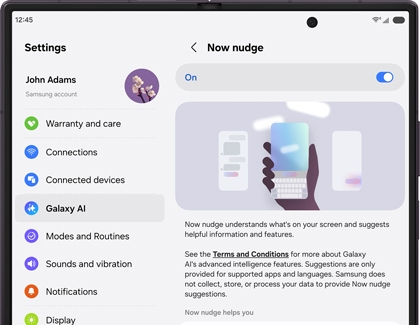
    A Galaxy Z Fold8 screen displaying the Settings menu with Galaxy AI selected and the Now nudge menu toggled on.

Use Now nudge

When Now nudge detects information it can help with, a suggestion appears while you're using a supported app. Simply tap the suggestion to complete the recommended action.

For example, Now nudge can help you:

  • Open a shared address in Maps.
  • Add an event from a message to your Calendar.
  • Share photos more quickly.
  • Recall useful information from previous chats, screenshots, and other supported content.
Note
Now nudge suggestions are available only for supported apps and languages. The suggestions you receive may vary depending on the content on your screen and your device settings.
Read less

Use apps side by side

Multi Window lets you use two supported apps at the same time in a split screen layout. This makes it easy to compare information, reply to messages while browsing the web, take notes during a video call, or switch between tasks without constantly opening and closing apps.

On your Galaxy Z Fold8 Ultra, you can also adjust the size of each app window, making it easier to focus on the content that matters most.

  1. Tap the Recent apps button.
  2. Tap the app icon above the first app you want to use, then tap Open in split screen view.
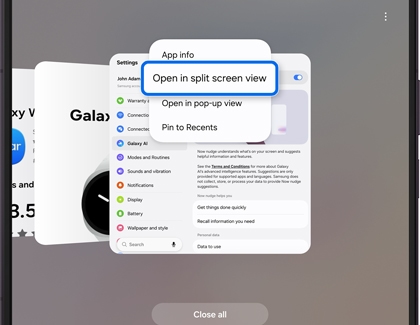
    A Galaxy Z Fold screen displaying recent apps with Open in split screen view highlighted in blue.
  3. Select another supported app to open in the second window.
  4. Drag the divider between the two apps to adjust how much space each app uses.
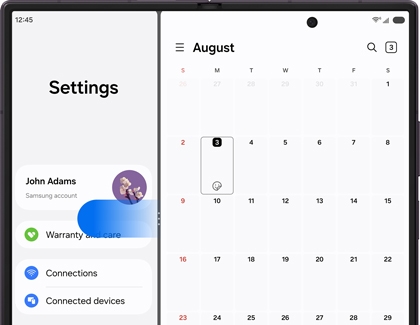
    An unfolded Galaxy Z Fold screen displaying the Settings app and the Calendar app side by side in split screen view.
Note
Some apps may not support Multi Window.
Read less

Open an app in Pop-up view

Pop-up view lets you open a supported app in a floating window that stays on top of other apps. This makes it easy to keep a conversation, calculator, or another app within easy reach while continuing to use your main app underneath.

You can move the floating window around the screen and resize it to suit your needs, making multitasking even more flexible on your Galaxy Z Fold8 Ultra.

  1. Tap the Recent apps button.
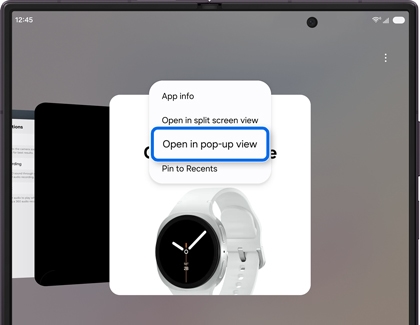
  2. Tap the app icon above the app you want to use, then tap Open in pop-up view.A Galaxy Z Fold8 screen displaying the Open in pop-up view selected..
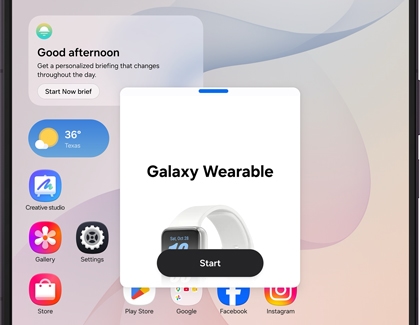
  3. Move or resize the floating window as needed while continuing to use the app underneath.A Galaxy Z Fold8 screen displaying a pop-up view of the Wearable app.
Note
Some apps may not support Pop-up view.
Read less
Was this content helpful?
Table of contents
We're here for you

Contact Samsung Support

Contact us online through chat and get support from an expert on your computer, mobile device, or tablet. Support is also available on your mobile device through the Samsung Members App.