How to Allow App Installs from Unknown Sources
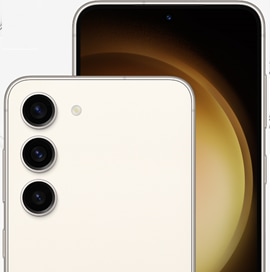
To install apps from sources outside the Play Store or Galaxy Store on your Samsung Galaxy device, you need to enable permissions for unknown app sources. This setting helps prevent unauthorized installations but can be adjusted if needed.
1. How to Enable App Installation from Unknown Sources on Samsung Galaxy Devices
- Open the Settings app on your Samsung Galaxy phone or tablet.
- Scroll down and select Security and Privacy.
- Tap on More Security settings.
- Select Install unknown apps from the list.
- Choose the app (e.g., Chrome, File Manager) from which you want to allow installations and toggle the switch to enable permission.
2. Why Should I Be Cautious About Installing Apps from Unknown Sources?
- Apps from untrusted sources may contain malware or compromise your device's security.
- Samsung devices block unknown app installations by default to protect user data.
- Only enable this feature when absolutely necessary, such as installing apps from trusted third-party stores.
3. Supported Samsung Galaxy Devices
This feature is available on most Samsung Galaxy devices, including:
Galaxy S24, Galaxy S25, Galaxy S26, Galaxy Z Fold, Galaxy Z Flip, and Galaxy A series.
4. Additional Things to Check
- Ensure your device is running the latest software version to avoid compatibility issues.
- Verify the source of the app file (.APK) before enabling installation permissions.
- Disable the permission once you're done installing the app to maintain security.
5. Related Samsung Support Topics
Thank you for your feedback!
Please answer all questions.